Products
ProductsSolutionsApplications
Resources
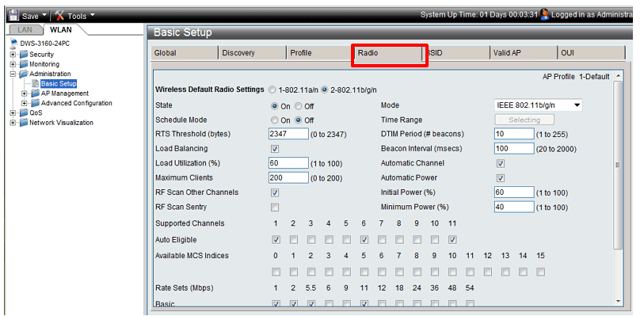
It is recommended disabling “Load Balancing” as the APs are closely located thus balancing clients may not work properly. Another tip is to reduce the maximum clients depending on the model of AP and client density between 25 and 35.
Initial Power also has to be modified because if we leave it as is the default 100% the system cannot increase because the power will be running maximum. We recommend setting the Initial Power 40% and 30% Minimum Power.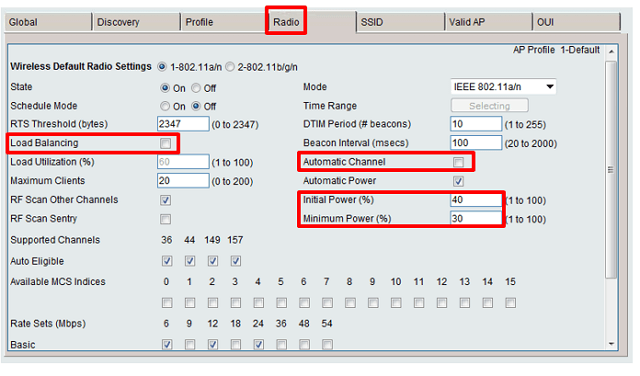
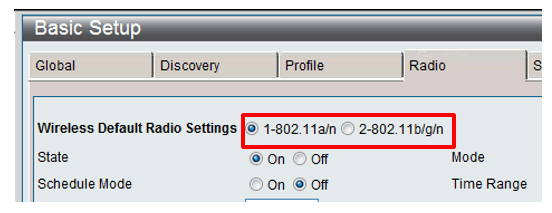
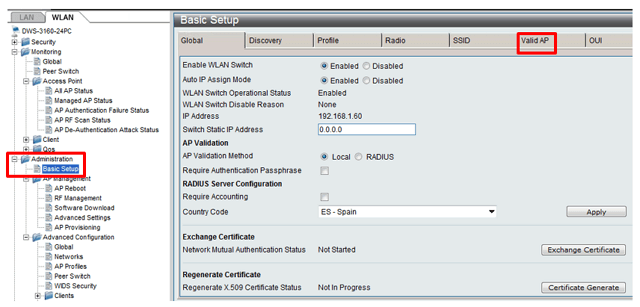
Here you can view the APs are managed by the controller.
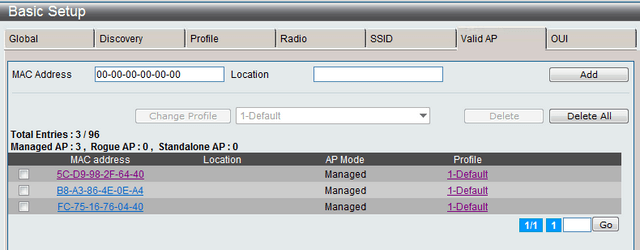
Step 5 - Within the Basic Setup menu click on the AP Mac Address you want to modify, change the Channel option to the desired channel, if the AP is Dual Band (issued on two fre-quencies simultaneously) modify both Radio 1 option (5Ghz) and the Radio 2 (2.4Ghz) option (remember to separate the different APS channels in as many as possible).
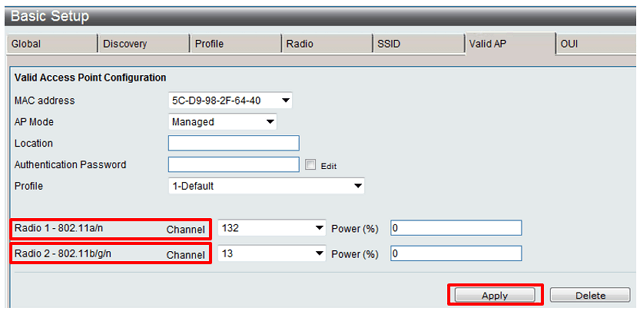
After changing channels click “Apply” to apply the changes.
Step 6 - After applying these changes to the channels within the Basic Setup menu select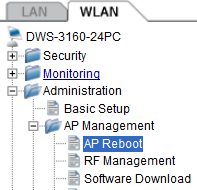
Click “Reboot ALL” to reset all APs together or select each reboot and click to select to manually restart one by one.

Step 7 - To apply other modifications to click settings
Administration > Advanced configuration > AP Profiles menu option left.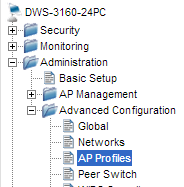
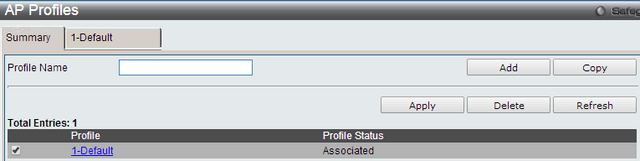
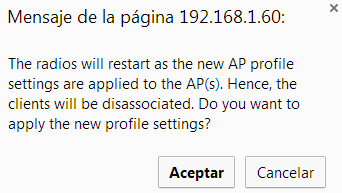
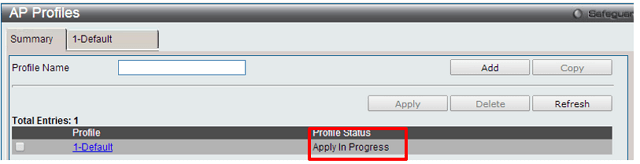
The system will tell you that to apply the new settings to the wireless network APs and will reboot so connected clients are disassociated momentarily and asked to confirm clicking “OK”.
Upon acceptance of this option the following will be shown in the column “Status Profile” that implementation of the new parameters being applied to the Aps.

Step 8 - To check the status of the channels - Enter on the left menu
Administration > AP Management > Advanced Settings option, here you can view the channels configured on each Ap.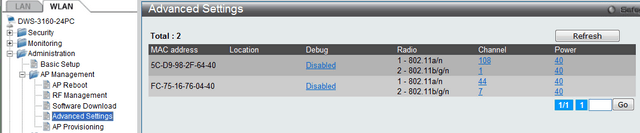
Step 9 - Finally we will keep the setting in the controller from the top menu, click
