Example: If your device only supports 802.11b or 802.11g and it can’t connect to the router then you can try to change the 802.11 mode to solve the problem. If your devices all use the same 802.11 standard, you can set an ‘only’ mode to improve performance.
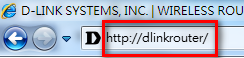
Step 1: Open your web browser and enter http://dlinkrouter or http://dlinkrouter.local into the address bar.
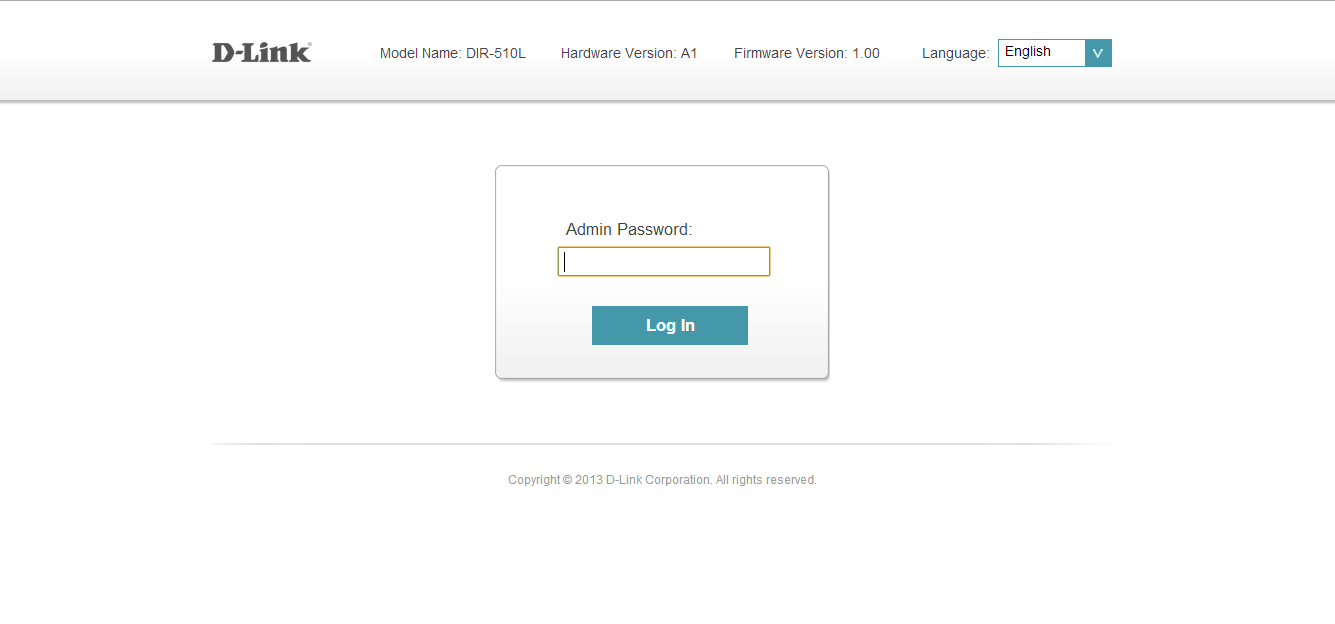
Step 2: At the login page, enter the Admin password. If you have not changed the administrator password, leave the field blank. Click Log In.
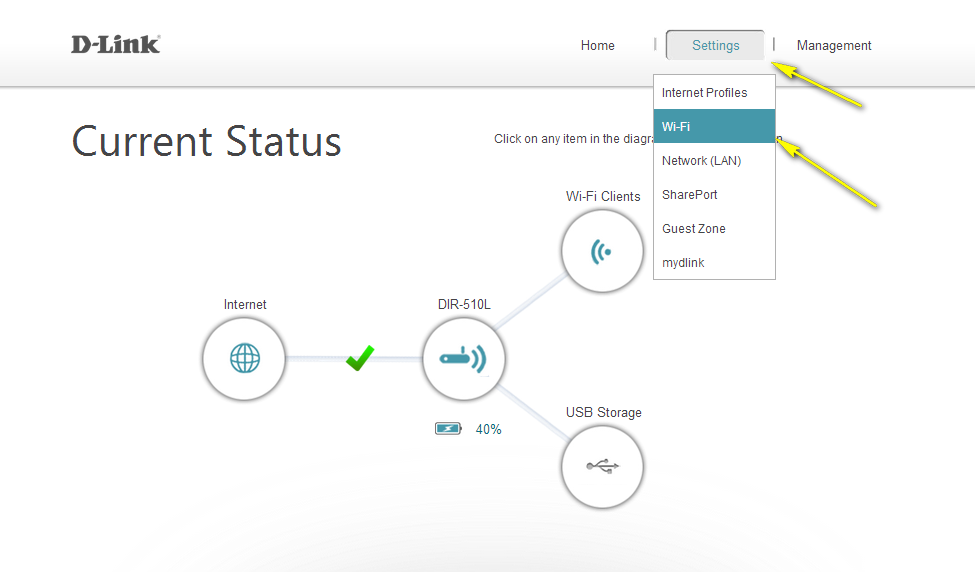
Step 3: Move the cursor to the Settings tab and then click Wi-Fi.
Step 4: Click Advanced Settings for the wireless band that you wish to change the wireless mode for. Choose your desired 802.11 mode from the drop-down menu. The mode selection process is the same for the 2.4 GHz and 5 GHz bands, however the options available for each band are different.
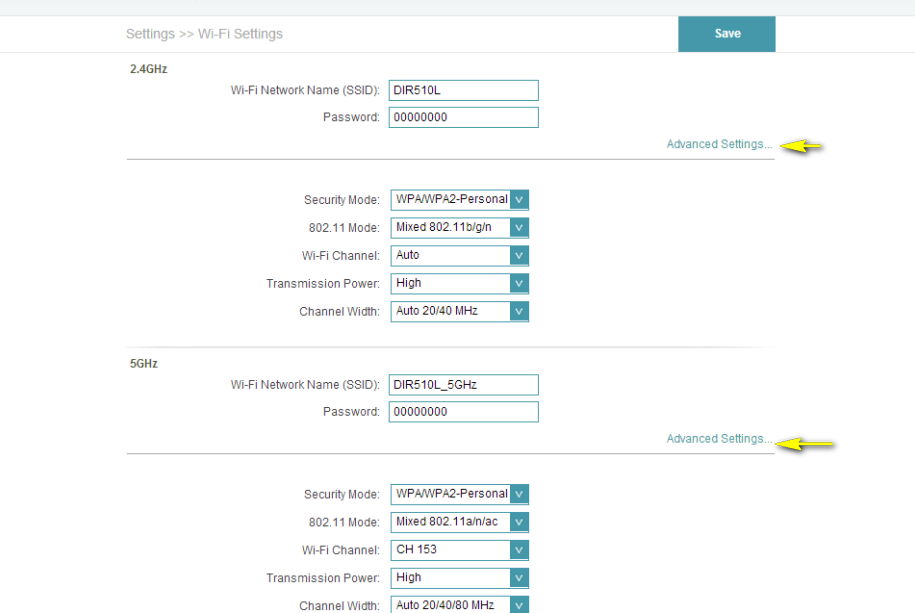
2.4 GHz Band:

5 GHz Band:

Step 5: Click Save to save your configuration.