Step 1: Ensure your USB drive is properly connected to your DIR-510L.
Step 2: Check the USB drive status using the router’s web interface.
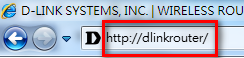
Step 2.1: Open your web browser and enter http://dlinkrouter or http://dlinkrouter.local into the address bar.
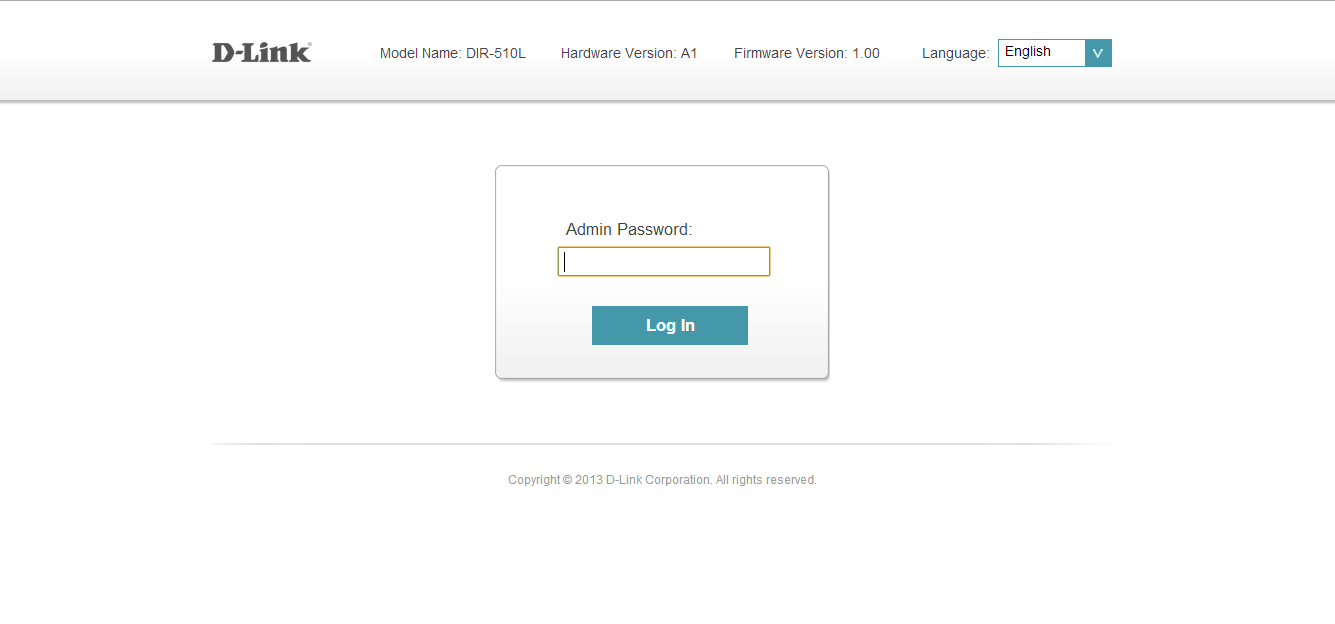
Step 2.2: At the login page, enter the Admin Password. If you have not changed the administrator password, leave the field blank. Click Log In.
Step 2.3: Click the USB Storage icon to bring up the storage status information. Confirm that this information reflects the characteristics of the USB storage device that you have inserted into the DIR-510L’s USB port.

Step 3: Move the cursor to the Settings tab and then click SharePort.

Step 4: Under DLNA Media Server, move the slider to Enabled. Under SharePort Web Access, move the slider to Enabled, and then click Save

Mobile Setup:
Step 5: Use your mobile device to download the mydlink SharePort™ app from the App StoreSM or Google Play®.

Step 7: Launch the mydlink SharePort app; the following screen will appear.

Select the file type you want to access (ie: music)
Note: If you access SharePort locally, the icon at the bottom of the screen will be blue.


Select the router you want to access by tapping on the router name. Routers which are available for selection will have a green checkmark symbol next to them.

Select the file type you want to access (ie: music)
Note: If you access SharePort remotely, the icon at the bottom of the screen will appear green (to indicate a direct connection), or pink (to indicate a relayed connection).
